The images below were published by TechWiser on October 23 and reviewed by us. They are not our gameplay. They verify the displayed interface, not current availability or a payout for every game.
1. Review the badge claim
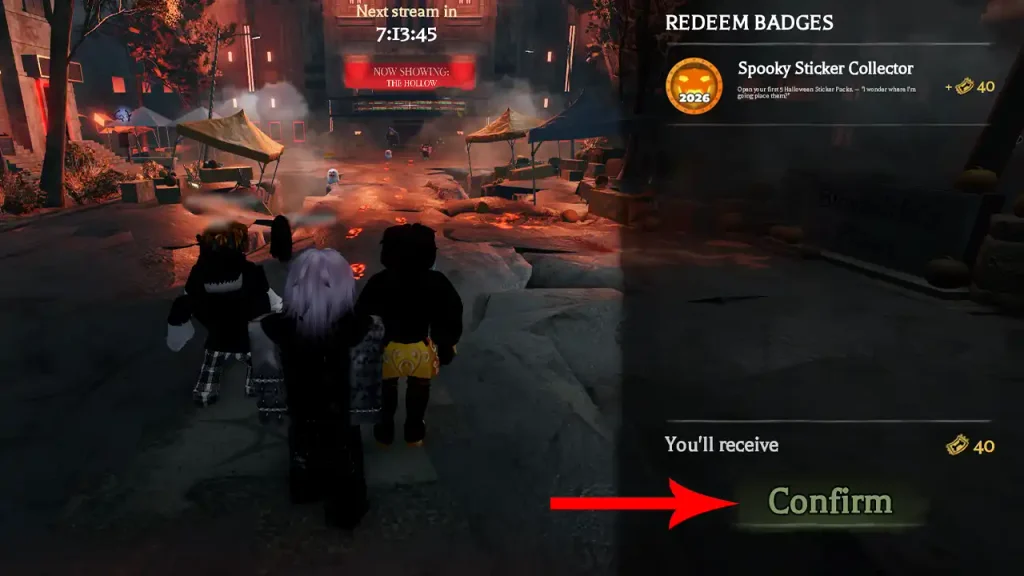
The pictured Redeem Badges menu lists a completed badge, a Ticket amount and a Confirm button. Read the amount on your own screen before confirming. This example does not establish a standard payout.
2. Check the shop item
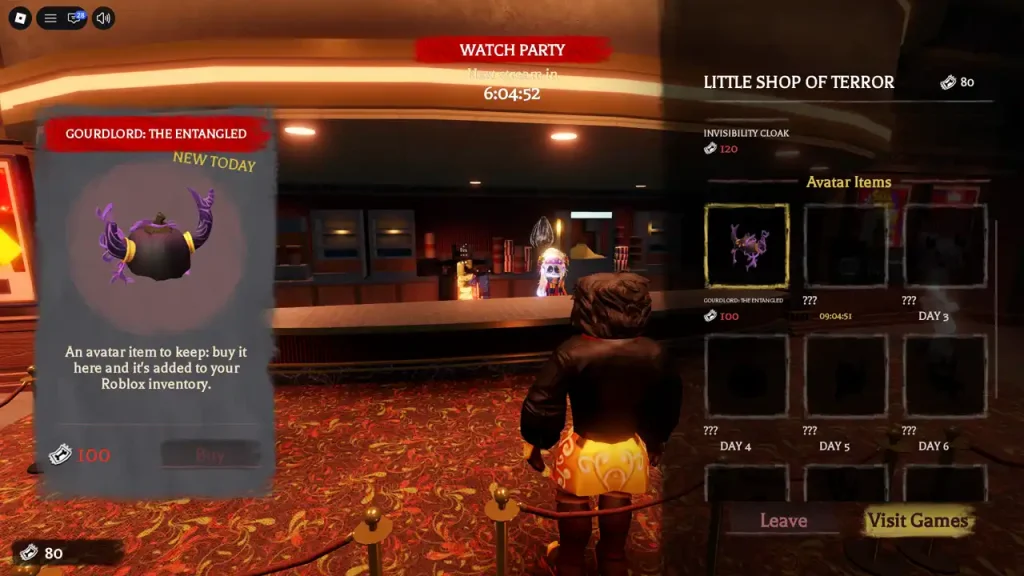
The Little Shop of Terror menu separates utility items from Avatar Items. In the reviewed screenshot, Gourdlord: The Entangled is selected with a price of 100 Tickets. The panel says it is added to your Roblox inventory when bought.
3. Verify the result on your account
Use the current in-game controls and price. On mobile, tap the visible interface buttons; this guide does not require a keyboard shortcut. Mark an item as collected here only after checking your own inventory.
Plus eligibility, refunds, Ticket expiry and any universal “Tickets per game” rate are not established by these screenshots. We leave those details unconfirmed.
Tickets or an item did not arrive?
A player reported missing Tickets and item claims on Roblox DevForum on October 23. That report does not establish an outage affecting everyone. Keep a record of the exact badge and account, and use the official Roblox support form if needed. We have no verified fix to promise.
Our checklist is separate from Roblox and cannot issue Tickets, badges or items.